By
Unite.AI is committed to rigorous editorial standards. We may receive compensation when you click on links to products we review. Please view our affiliate disclosure.
Over 8 million videos are created on this platform every single month. That’s not just growth, that’s a signal worth paying attention to.
If you’ve ever had a great video idea and watched it slowly die somewhere between scripting, editing, finding footage, and recording a voiceover, you’re not alone.
Most people don’t struggle with ideas; they struggle with the speed of execution. That gap is exactly where InVideo steps in.
A few prompts in, and you’ve got a fully structured video: script, visuals, music, subtitles, voiceover, the whole thing.
The best part? There’s no editing timeline to wrestle with, no complex software to learn, and no frustrating learning curve eating up your afternoon. What used to take half a day can realistically take 20 or 30 minutes now.
In this InVideo review, I’ll discuss the pros and cons, what it is, who it’s best for, and its key features. Then, I’ll show you how I collaborated with the AI Agent to generate a YouTube Short about The Future of AI.
I’ll finish the article by comparing InVideo with my top three alternatives (Pictory, Synthesys, and Synthesia). By the end, you’ll know which tool is right for you.
Overall, InVideo is a fast, beginner-friendly AI tool that turns prompts into videos. It’s great for quickly generating content, but limited control, slower generation on longer projects, and credit limits can be frustrating.
InVideo is a browser-based AI video generator that turns your ideas into videos. That includes ads, explainers, social media content, music videos, UGC-style ads, anything you can imagine, really. You type a prompt, and the AI agent gets to work.
It generates everything, including the voiceover, music, stock footage, and transitions. It’s popular with content creators, marketers, and YouTubers for streamlining workflows like explainer videos, ads, and social media clips.
The numbers back it up, too. Over 50 million users across 190 countries, and more than 8 million videos are being created on the platform every single month.
And genuine users on the platform have said things like going from their first video to a monetized YouTube channel in under two months, or cutting video production time from half a day down to 30 minutes. One marketing agency said its sales doubled after making the switch.
InVideo also holds a 4.6 out of 5 rating on Capterra and G2. High ratings there actually mean something. It was also named Product of the Month on Product Hunt, which carries weight in the SaaS world.
InVideo is browser-based, so no installs means no compatibility issues, no updates breaking your workflow, and you can technically work from any device with an Internet connection.
Is it perfect? No tool is. But as an entry point into AI video creation (especially if traditional editing software has always felt like a wall for you), InVideo is one of the best options out there right now.
InVideo is best for beginners, busy content creators, and small-scale marketers who prioritize speed and simplicity over manual control in video production:
InVideo’s key features center on its AI text-to-video generation and editing tools:
Here’s how I collaborated with an AI Agent in InVideo to generate a YouTube Short about The Future of AI:

While the first option (Autopilot) is the fastest, I went with “Agent mode.” It’s InVideo’s most advanced video creation experience, letting you collaborate with AI in real time to refine your video as you go.
“Act as a viral content creator. Create a 45-second YouTube Short about ‘The Future of AI in 2026.’ Start with a high-energy hook. Use fast-paced editing with cinematic stock footage. Use a confident North American male voiceover. Ensure the background music is ‘futuristic lo-fi’ and make the subtitles bold and colorful. End with a call to action to subscribe.”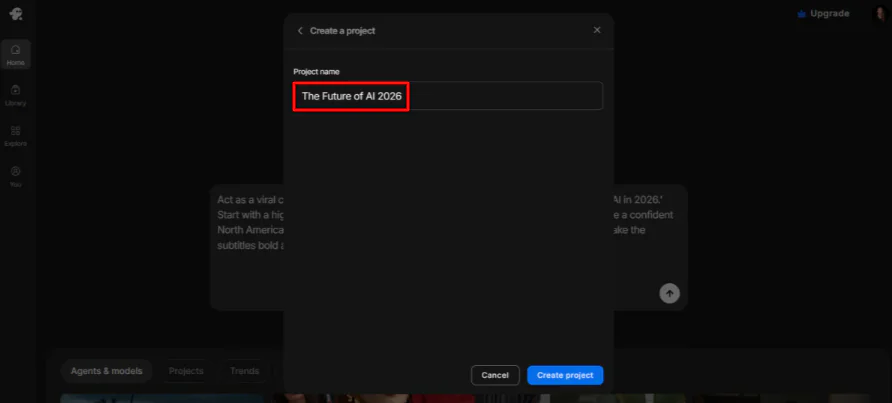
After naming my project (“The Future of AI 2026”), I selected “Create project.”
This isn’t just for aesthetics. It helps you stay organized when switching between different brand styles.
After identifying itself, it immediately began generating a voiceover, script, and video clips.

It also gave me some suggestions for how to move forward:
“This looks great. Let’s go with Seedance 2.0 to generate the video clips for all keyframes. Make the camera movements ‘dynamic zoom-ins’ to keep the energy high for social media.”
With the final touches in place, it was time to generate the video. I gave the AI Agent this prompt:
“Assemble the final 45-second video. Sync the ‘Ryan’ voiceover (8.1) with the visuals, overlay the ‘futuristic lo-fi’ music (14.1), and add the bold, colorful subtitles we discussed. Make sure the transitions between the Seedance 2.0 clips are smooth and fast-paced.”
I gave it the following prompt to deal with the final mix manually:
“Please generate the download links for the full 9:16 video (22.1) and the lo-fi music track (14.1).”
Seconds later, my video was downloaded:
The video looked and sounded great! The pacing was good, and the voiceover sounded realistic. However, not enough clips were generated to match the length of the voiceover.
The AI Agent informed me that for the final mix, I just had to drop the music under the video into my editor (CapCut, Premiere, DaVinci), pull it to about -15dB so my AI voiceover stays front and center, and apply bold subtitles.
In my test, the Agent claimed to have the music ready, but the download link only provided the video file. If this happens to you, don’t worry.
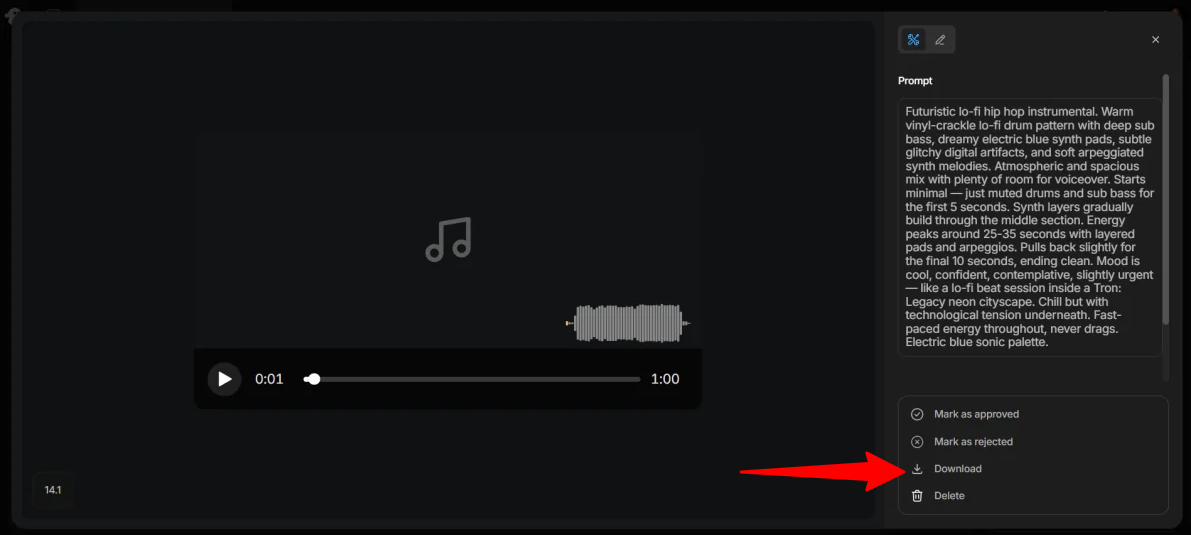
I clicked it and hit “Download.”
Overall, InVideo made it incredibly easy to go from a simple idea to a fully structured video using AI. The Agent mode offers a flexible, collaborative way to refine every detail in real time.
While the experience was powerful, limitations like credit usage on the free plan and a few final export hiccups mean you may still need minor manual tweaks in a separate video editor to finish the job.
Here are the best InVideo alternatives I’ve tried.
The first InVideo alternative I’d recommend is Pictory. It’s built around taking content you already have (scripts, blog posts, URLs, PowerPoints, audio files) and turning it into video automatically.
After signing up for Pictory, I found myself in the dashboard on a free trial. The interface was easy to navigate immediately. I went straight to the Text to Video tool, typed in a prompt, and hit generate:
The first draft was decent but a little generic. Some clips didn’t match the script, and it came out two minutes long even though I asked for one.
But swapping clips and adding an AI voiceover in the editor took no time, and the final result looked a lot better:
Compared to InVideo, Pictory is more hands-off. You feed it content, it builds the video, you make light edits, and publish. Meanwhile, InVideo gives you more hands-on control through its AI Agent.
For fast, scalable content repurposing, choose Pictory. For a more collaborative, interactive editing experience, go with InVideo.
Read my Pictory review or visit Pictory!
The second InVideo alternative I’d recommend is Synthesys. It’s an all-in-one suite covering videos, voiceovers, avatars, and visuals. What sets it apart is the realism: lifelike AI presenters, voice cloning, and support for 140+ languages.
The dashboard gave me three project types right away: AI Avatars for explainer and corporate content, UGC Personas for turning products into instant video ads, and AI VSL (a Video Sales Letter generator where you paste a URL, upload a PDF, or describe your product and let the AI write and build the video).
I went with AI VSL, pasted a link to one of my blog posts, tweaked the settings, and hit generate. A few minutes later, the video was ready:
It came out better than I expected. The quality was great, the structure was engaging, and it even ended with a call to action. The only thing was that there were typos in the on-screen text.
Choose InVideo to generate social content quickly with a large stock media library. Otherwise, choose Synthesys for avatar-driven videos, voice content, and presenter-style videos.
Read my Synthesys review or visit Synthesys!
My final InVideo alternative is Synthesia. It’s built for businesses that need corporate-style videos with AI avatars and multilingual capabilities. It supports 160+ languages, collaboration tools, SCORM export, and analytics.
This isn’t a tool for quick Instagram Reels. It’s for training videos, product demos, and professional presentations that need to look like they came from a real studio.
When I tried it, I went with a paid plan to test it properly. Once inside, I generated this video:
I was impressed by how real the AI avatar looked and sounded. The video itself also looked really professional.
But the editor was where Synthesia really stood out to me. It went beyond basic edits. I could add gestures to the avatar (like an eyebrow raise at a specific word), insert pauses, and even adjust individual word pronunciations with a Diction tool. That kind of granular control is rare in AI video tools.
Choose InVideo for general video creation, especially for faceless social media content. Otherwise, choose Synthesia for professional, scalable, multilingual business videos with AI presenters.
Read my Synthesia review or visit Synthesia!
After testing InVideo by generating a YouTube Short with the AI Agent, the biggest thing I noticed is how quickly it turns an idea into a structured video. I went from a single prompt to a fully edited draft in minutes, and the Agent helped refine my video along the way.
With that said, the experience wasn’t perfect. Running out of credits mid-generation and needing a separate editor for final edits made it clear that InVideo is powerful, but still not fully “hands-off” if you want a perfect final export.
Overall, InVideo is best for fast, AI-assisted content creation, especially for social media and faceless videos, where you can quickly tweak the output. But if you need deep creative control or long-form production, you might want to consider one of these alternatives:
Thanks for reading my InVideo review! I hope you found it helpful. Sign up for free and see how you like it.
While InVideo is not completely free, it does offer a free plan with limited credits.
CapCut is generally better for social media editing, while InVideo is better for AI video generation and marketing content.
Yes, InVideo AI is safe to use in terms of data security and legality. It is a widely used platform.
Yes, several alternatives to InVideo AI offer better features depending on your needs. For example, Synthesia and Synthesys are better for generating professional avatar videos, while Pictory is better for repurposing long-form content.
Canva is generally better for beginners, social media managers, and graphic design, while InVideo is better for dedicated AI video production.
Janine Heinrichs is a Content Creator and Designer helping creatives streamline their workflow with the best design tools, resources, and inspiration. Find her at janinedesignsdaily.com.
10 Best AI Video Generators (June 2026)
10 Best AI Art Generators (June 2026)
10 Best AI Writing Generators (June 2026)
10 Best AI Music Generators (June 2026)
10 Best “Text to Speech” Generators (June 2026)
10 Best AI Tools for Business (June 2026)
Advertiser Disclosure: Unite.AI is committed to rigorous editorial standards to provide our readers with accurate information and news. We may receive compensation when you click on links to products we reviewed.
Copyright © 2026 Unite.AI
Leave a Reply